 Tag Pilot
Google Tag Manager server-side explained
Server-side GTM containers are not a new concept, but adding one to a classic, browser-based setup can be a relatively complex subject. The web tracking and privacy landscape is convoluted enough already, so we want to simplify things and show in detail how you can benefit from it. Each way of using GTM server-side takes a different amount of work and brings a different set of benefits.
In the end, we want to help you decide whether investing in GTM server-side will have a positive ROI for you or your clients.
TL;DR
GTM server-side can be implemented in a few different ways, each with a different impact on tracking performance. It can serve the GTM runtime, proxy all external communication, or handle server-to-server traffic. When all of these are used, it can significantly improve the results of business-critical work such as analytics, advertising and content optimisation.
1. No server-side container
To understand what a server-side GTM container changes, let’s start with the traditional tracking setup that uses only a web container:
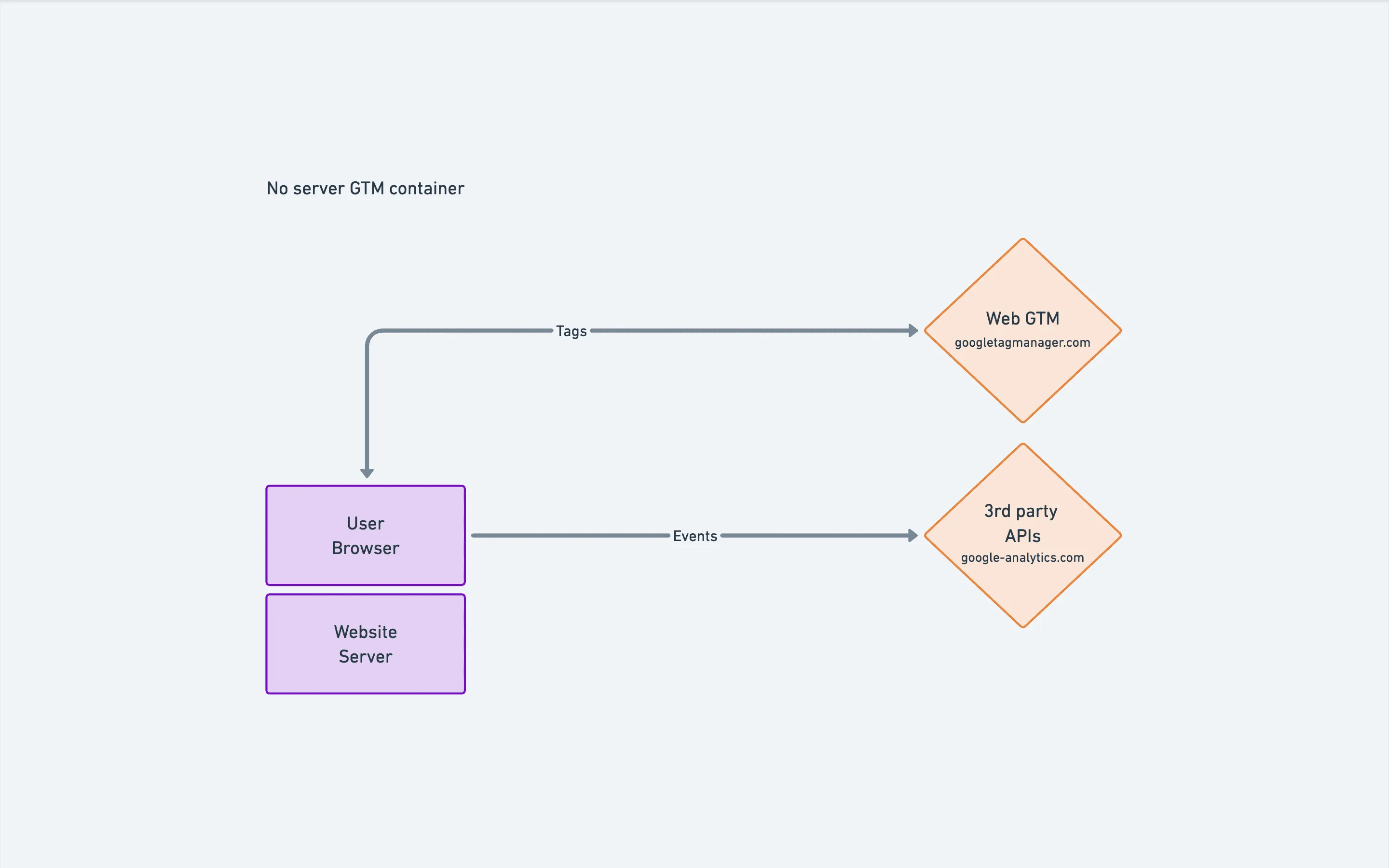
All tags are loaded into the user’s browser from the public GTM domain, and they then interact with the target tools, such as Google Analytics. Interacting means making external HTTP calls and setting first-party or even third-party cookies (cookies set from a different domain than your website).
In this setup, tagging can easily be blocked at different stages: the external HTTP calls, specific JavaScript SDKs, or saving cookies.
You can see this in Safari’s private mode, which blocks well-known trackers by default: the request for gtm.js is blocked as a “known tracker”. The whole tracking setup is cut off at the very first entry point. If gtm.js cannot be loaded, no GTM tags run.
2. Serve gtm.js from the server container
Probably the easiest thing to do with a GTM server container is to serve the web GTM container from your own domain. This helps make sure the web container and its tags load despite ad blockers and browser privacy features, but it won’t get past all protections. In this scenario, all interactions with the destination tools still go to public third-party APIs.
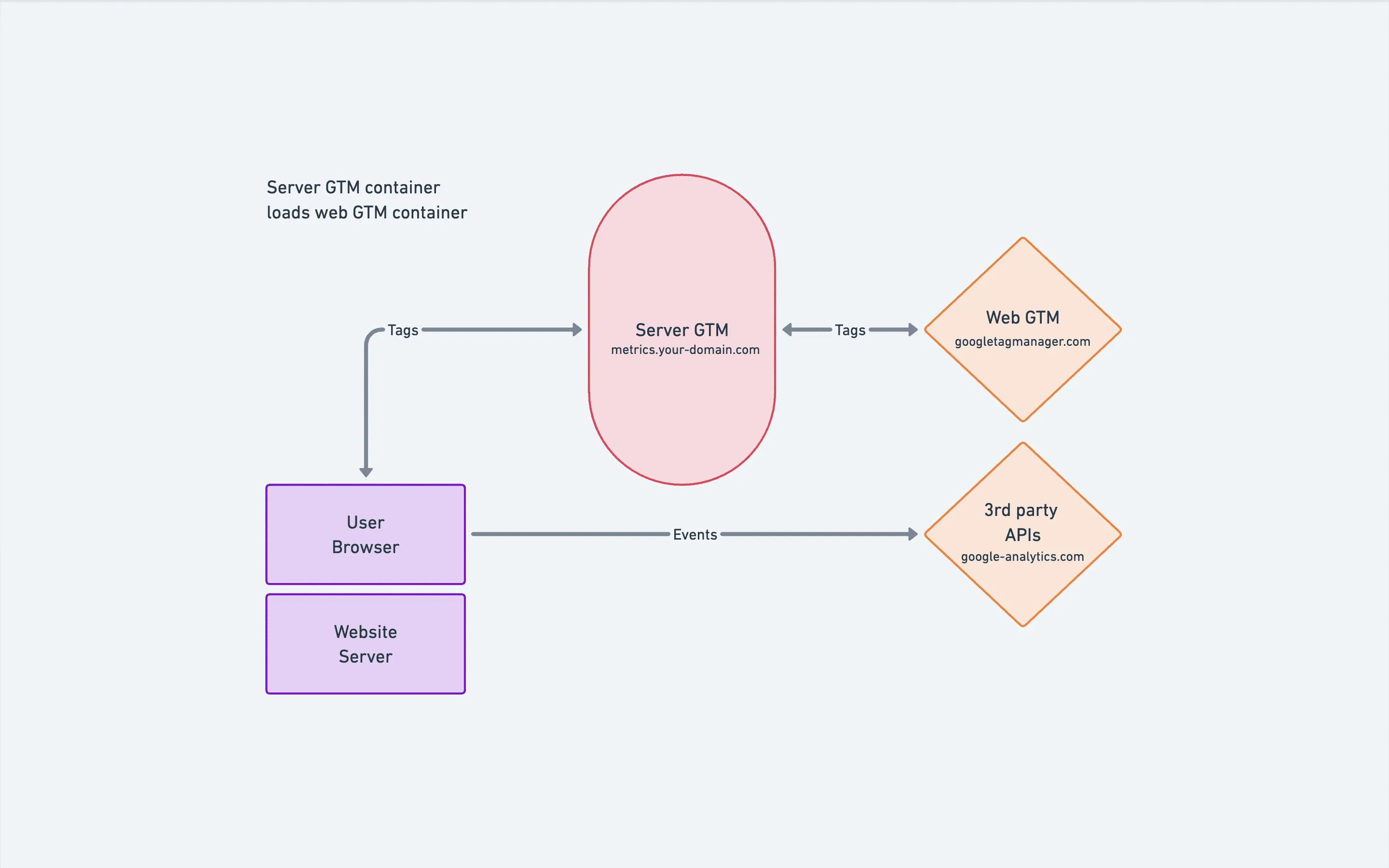
Implementation
The implementation is simple and takes just two steps:
- Create a Web Container client in the server container that points to your web container.
- Change the URL in the GTM snippet: in the original GTM snippet, replace the
www.googletagmanager.comdomain with the custom domain of your GTM server container.
Repeat the Safari test and gtm.js now loads correctly from the custom subdomain. The console is still not free of “Blocked connection to known tracker” errors, though: the browser now blocks most of the tags that GTM loads instead.
This setup is very simple to implement, but its benefits and impact on tracking performance are limited.
3. Server-side tagging
Now we enter much more complex territory, but the possible benefits are also bigger. “No pain, no gain” applies here.
In this scenario, all events are forwarded to the server container, and the third-party APIs are called from the server container instead of the browser. For both loading tags (gtm.js) and talking to the destination tools, the user’s browser now only talks to your server container, running on your domain. It also gives you fine-grained control over which tracking cookies are set.
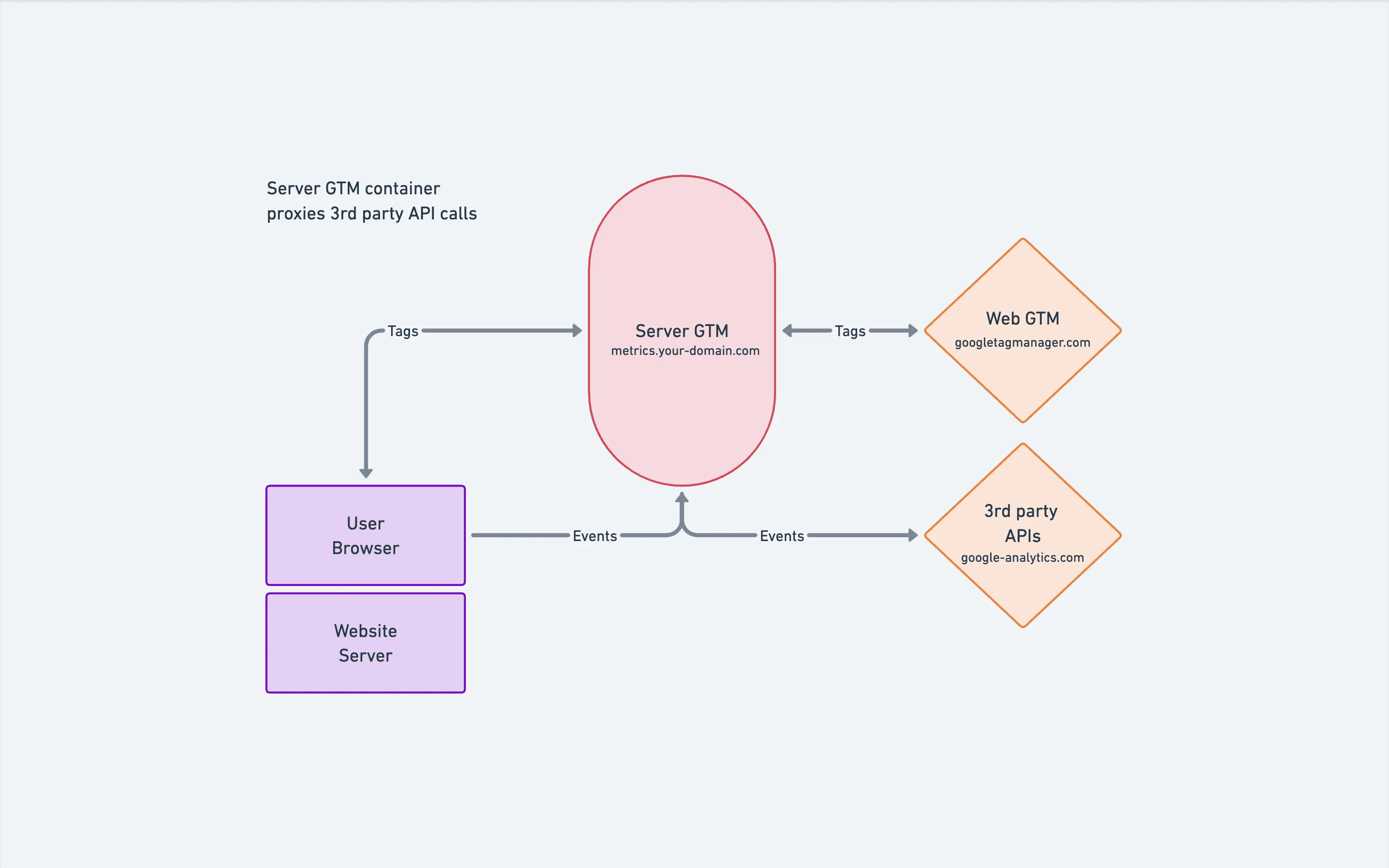
There is one more benefit: each event is sent to the server container once, no matter how many tools you integrate with. With classic, browser-only tracking, every connected service means separate HTTP calls to send event data and to load its JavaScript SDK:
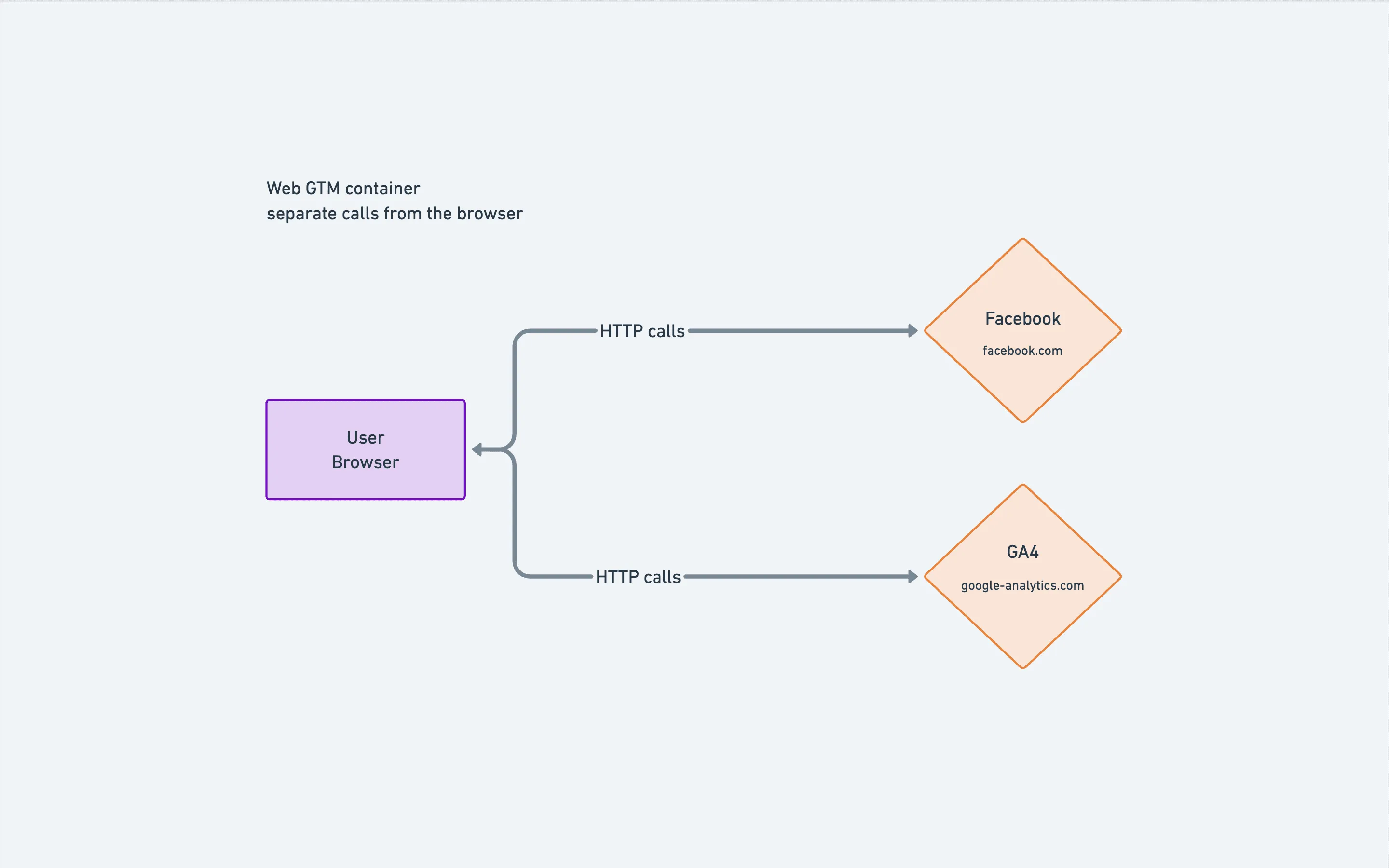
With a server container:
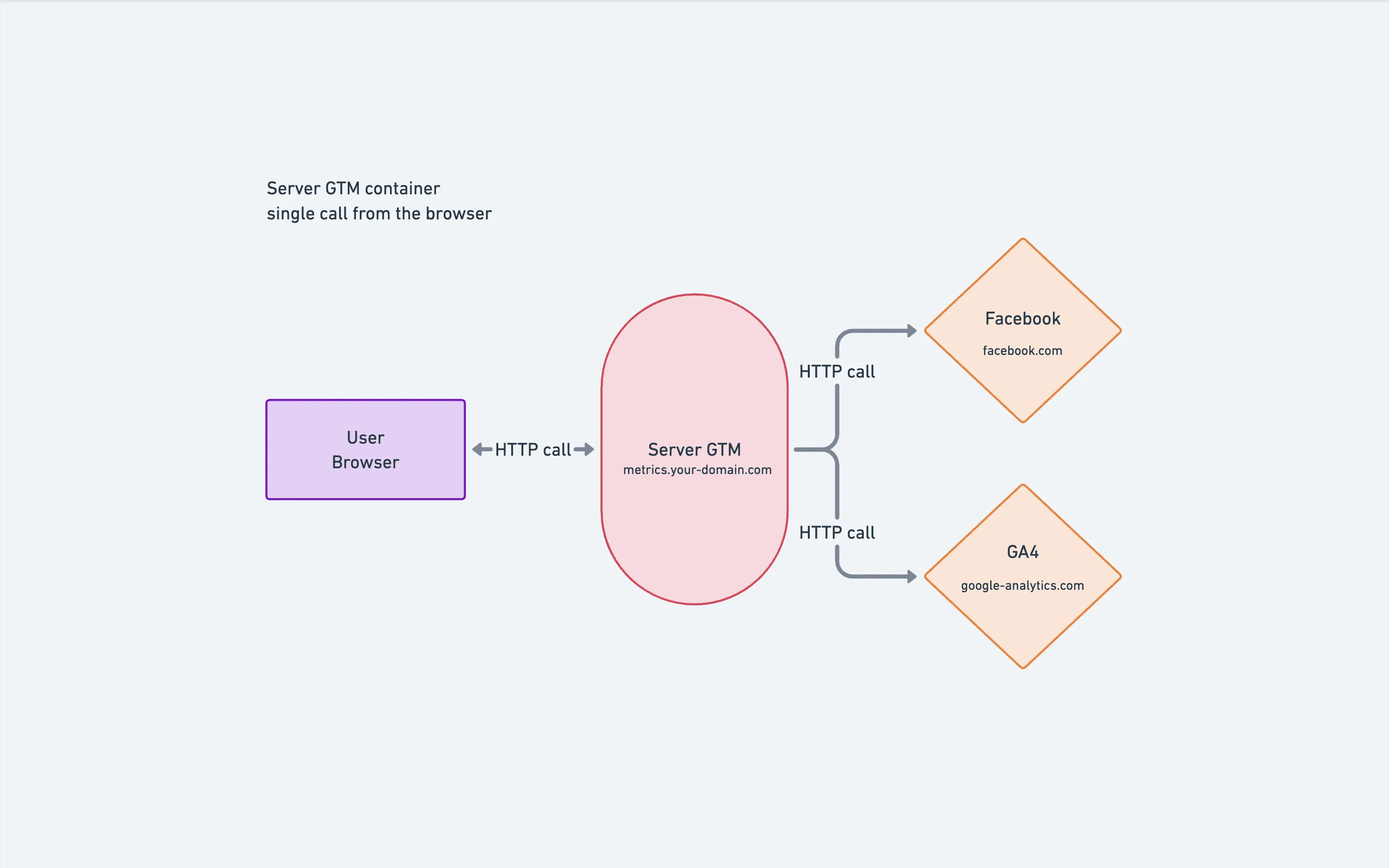
If you deploy GA4, Google Ads, the Meta Pixel and TikTok, for example, that is one HTTP request instead of at least four. This is a simplified comparison; in practice the difference is bigger, because each service’s SDK loads additional assets.
That means fewer HTTP calls and less JavaScript in the browser. It also lets you transform and modify data before it is sent to third-party APIs. Loading external SDKs in the browser doesn’t give you that level of control.
Implementation
Server-side tagging can be implemented with Google tags in the web container. The tag needs to point at the server container URL instead of the public Google API, which is a relatively simple change: one extra configuration parameter on the Google tag, server_container_url, set to the URL of your server container (for example https://metrics.your-domain.com).
Alternatively, you can use custom templates and tags. For a setup focused on Google products, the Google tag is the recommended way, but we prefer a more agnostic approach: one generic tag that sends all relevant events to the server GTM container.
Whichever you use in the web container, this traffic needs to be received and processed in the GTM server container. That is a significantly more complex implementation, and we’ll skip the details here.
As a result, the web container should include:
- a “forwarding” tag,
- all triggers and variables that need to be forwarded to the server container,
- optionally a consent tag,
- optionally any tags that cannot be handled in the server container (when a third-party API does not support server-to-server communication).
And the server container contains:
- a client that accepts traffic from the web container,
- triggers and variables that structure the incoming data,
- all tags that talk to third-party services.
This step is significantly more complex, and we couldn’t cover every detail here. Once everything is configured correctly, though, it should bring a significant improvement in tracking performance and in control over the data sent to third parties.
But these are not all the options. There is one more step that takes tracking to another level, and it is not the most complex one.
4. Server-side tracking
On top of server-side tagging, which means creating tags in the server container, you can also do server-side tracking: tracking certain events from the website server rather than the user’s browser.
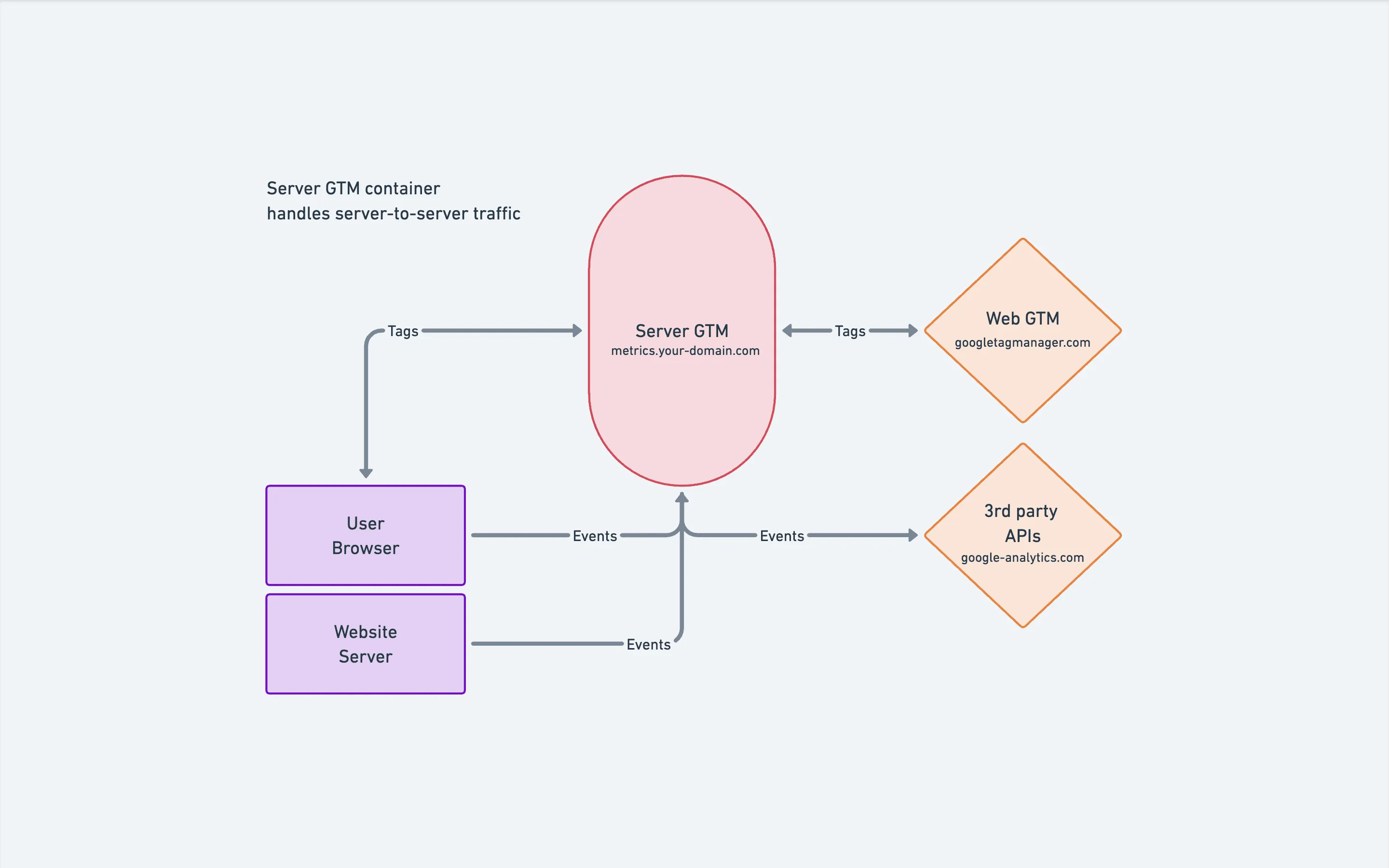
There is one more arrow in the picture: from the website server to the server GTM container, with no browser involved. This doesn’t suit every event. Scroll events, or interactions on cached pages that never reach the server, aren’t candidates. But events like add_to_cart, remove_from_cart, purchase and refund are great candidates for server-side tracking and benefit a lot from it.
Some of them, like refund, are hard to track at all without server-side tracking, because the refund happens in the back office of the shop.
For purchase, you can be more precise about the exact moment the transaction is tracked. That is not always when the user visits the order confirmation page, the classic place to track purchases. What if the user never lands on that page? Or the transaction is cancelled because of a payment issue?
A correct server-side tracking implementation solves all of this. Events are tracked at exactly the right moment, and they always reach the GTM server container.
Implementation
Most of the work is on the tracking side: you need a tool that plugs into your platform, gathers the required data points and sends them to the server container in the right format.
As with server-side tagging, you can use Google Analytics’ native format for server-side communication, the Measurement Protocol, or a custom, generic client template. Which to choose depends on what your tracking tool supports.
Other things to take into account:
- Event de-duplication. Your web and server tracking will overlap one way or another. Make sure each event is either sent only once, or sent with parameters that let the destination tools de-duplicate it. That means a reliable
event_idfor events tracked from both the browser and the server. - Consent management. Decide how and where the user’s consent is honoured: in the web or the server container. We recommend doing it server-side.
- Extra properties and their handling. Server-side tracking APIs usually accept more detailed user information, but it needs to be formatted correctly to protect user privacy; one-way hashing is a common solution.
- Event retries. Even if your GTM server container is a high-availability deployment, you may want the tracking tool to retry pending events that could not be delivered because of temporary network issues or downtime of the server container.
- Background queueing. To get the most out of server-to-server communication, send tracking events from a background process, so they don’t slow down your customers’ live transactions. Even if a tracking call fails, it should never cause errors for the website’s users.
Summary
We could dive deeper into each section and cover more about cookie storage and privacy. Still, we covered the main ways a GTM server container can be added to a website to significantly improve tracking performance and, as a consequence, the results in the connected tools. Reliable data is key to analysing user behaviour correctly, optimising paid campaigns and improving website content with recommendations or personalisation.