 Tag Pilot
Improve conversion rate with ecommerce sales funnel reports in GA4
From viewing a product to the cart and checkout events, ideally ending with a purchase, the ecommerce sales funnel is the most critical process of an online business. Monitoring and understanding it should be a top priority for every ecommerce owner and manager.
Learn how to use the industry-standard analytics tool, GA4, to see what’s working and what’s not.
Ecommerce sales funnels follow a very predictable pattern. A user:
- lands on the homepage,
- selects a product,
- adds it to the cart,
- starts the checkout,
- and, ideally, completes the transaction.
This “happy path” is the core journey to revenue. Making sure it works, and monitoring it, is a key responsibility of any ecommerce manager.
Detailed reports for each step of the funnel can answer several important questions at once:
- Is the checkout process working properly?
- Where are users most likely to drop off?
- Are there dimensions, such as device (mobile vs desktop) or language, that correlate with a lower conversion rate?
Fortunately, Google Analytics 4 is well equipped for this kind of analysis. Its standard ecommerce events include all the relevant steps, and when they are implemented correctly, GA4’s built-in Purchase journey funnel gives you insight into this core sales process.
How to get started?
Setting up the Purchase journey funnel in GA4 doesn’t have to be complicated. Here’s how to start and make sure everything works.
Make sure all ecommerce events are tracked
First, check how your ecommerce events are tracked:
- with a GTM tracking plugin,
- with a custom dataLayer implementation,
- or with a direct GA4 integration.
These events are the backbone of your funnel. Whichever way they are tracked, check the GA4 Engagement > Events report to see whether view_item, add_to_cart, begin_checkout and purchase are showing up.
Enable the Purchase journey report
GA4 has a built-in report called Purchase journey in the Monetization section. If you don’t see it, open the Library, find the collection that contains it (Life cycle in many properties) and publish it; the report then appears in the navigation.
How to use the report?
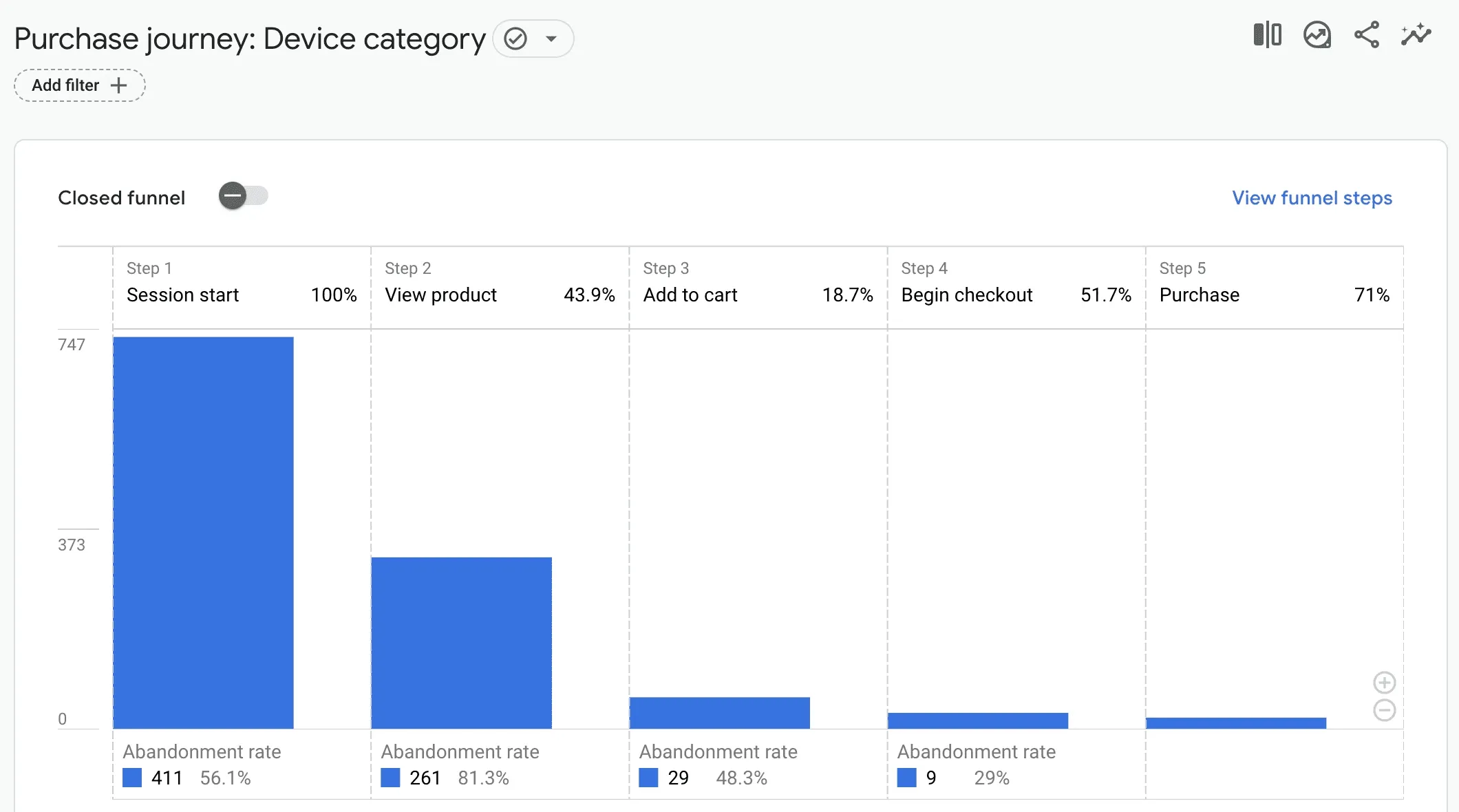
The report shows how many active users make it through each step of the ecommerce process. By default it is a closed funnel: only users who go through the steps in order appear in the report. Switching the toggle to an open funnel lets users appear in a step without having been included in the previous ones.
Each step shows the number of users who completed it, with these metrics:
- Active users, shown when you hover over the bar: the total number of active users who completed the step.
- Abandoning users, shown next to the small blue box at the bottom of the step: the number of users who left at this step and didn’t continue.
- Completion rate: the percentage of users who completed this step, compared with the previous step.
- Abandonment rate: the percentage of users who entered this step but didn’t complete the next one.
The abandonment rate of one step and the completion rate of the next step always add up to 100%.
It is normal for the final steps to have very small bars on the chart, but you can zoom in.
Detailed breakdown
Besides the visual funnel, the report has a breakdown table that lets you quickly compare numbers between groups of users. By default, the funnel is broken down by device category, which shows how your funnel performs for visitors on mobile vs desktop.
You can change the breakdown dimension to other user-scoped dimensions, such as country or language, which is useful for multi-language and multi-market stores.
Limitations of the built-in report
The Purchase journey report is a great first step towards understanding the ecommerce sales funnel, but it has some limitations:
- very few breakdown dimensions are available; for instance, none of the traffic source attribution dimensions are,
- the percentages in the table compare the active users in each combination of step and dimension value with the total, so they are not abandonment or completion rates.
Some of these limitations can be addressed with a custom exploration based on the report. GA4 makes this simple, with a button in the top right of the report called “Open this report as an exploration”. It creates a new exploration with the same initial setup, and from there you can customise the metrics and dimensions.